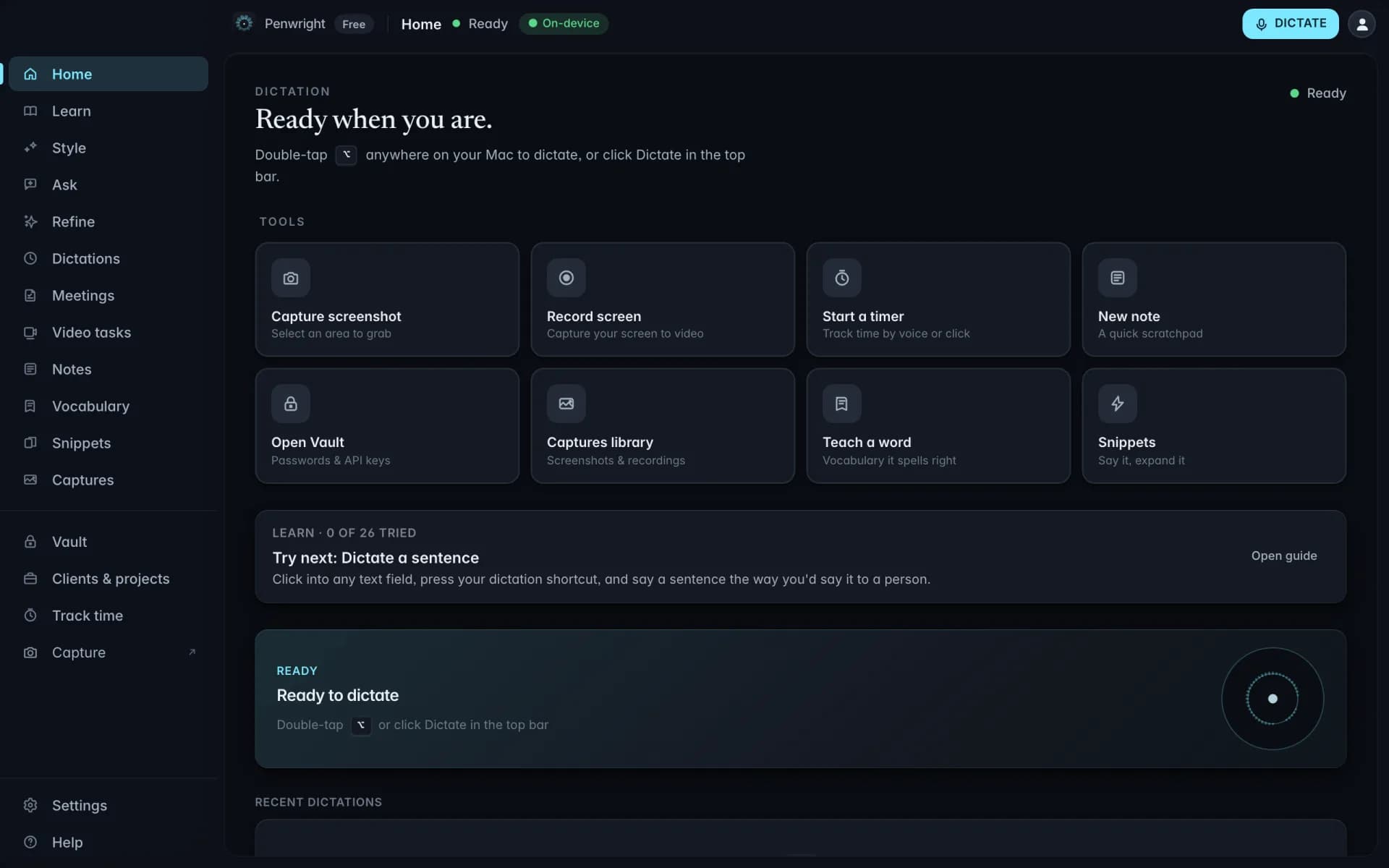
Content stays on your Mac
Dictation, transcripts, meeting audio and local indexes are processed and stored on your machine.
Included at launchThe first draft of a document is the slowest part. Penwright lets you talk it out, start to finish, and have the cleaned version land in the doc, ready to edit. Faster than typing, less painful than dictation tools that need you to say "comma."
in this proposal we lay out the three things we want to ship in q3 a new pricing page a redesigned onboarding and a self serve trial
This proposal lays out the three things we want to ship in Q3: 1. A new pricing page 2. A redesigned onboarding flow 3. A self-serve trial
Click into a Google Docs text field, hit the hotkey, speak. The clean text is in before you would have typed it.
Three minutes of speaking become structured text with paragraphs and punctuation. No typing cramp, no reformatting.
Standard replies live as snippets and expand from a spoken trigger. The dictionary keeps names, companies and acronyms spelled right.
Grab the .dmg from the download page, drop it in Applications, open.
Default is ⌘⇧Space. If Spotlight is in the way, set a conflict-free shortcut right away.
Drop in the names, companies and codenames you use every day. Penwright will get them right from day one.
Open Google Docs, click into a text field, hold the hotkey, speak. Release. The cleaned version lands in the field.
Three to four times faster with voice. The math gets uncomfortable fast.
Average typing speed for a confident keyboard user.
Sustainable speech rate. No cloud round-trip.
Penwright does not need your spoken content to provide the product. Audio, transcripts and local indexes stay on your Mac, and you can verify the network traffic yourself.
Dictation, transcripts, meeting audio and local indexes are processed and stored on your machine.
Included at launchPenwright's servers handle accounts, licences and billing, not the audio or transcripts you create on your Mac.
Included at launchThe Penwright API has no route for your dictation audio or transcripts. A server cannot leak content it never receives.
Included at launchUse any network monitor you trust. The security page documents the traffic you should, and should not, see.
Included at launchCapture the half-thought before it disappears. Notes worth coming back to.
Reply to a full inbox in a fraction of the time. Speak the response, send the clean version.
Long-form Slack replies without typing fatigue. Talk in the channel like you talk in person.
Fill Notion pages at the speed of thought. Specs, notes, retros, all spoken, all clean.